Summarize this page with
CreepJS, BrowserLeaks and Pixelscan help a person inspect a browser, but they expose different evidence. CreepJS emphasizes fingerprint behavior and JavaScript lies, BrowserLeaks separates individual browser and connection surfaces, and Pixelscan presents browser consistency diagnostics. Their page results should not be treated as interchangeable fraud scores or proof that an application account is genuine.
Choose a diagnostic by the question being investigated. A rendering discrepancy, an unexpected network address and an account with repeated benefit claims are three different questions. The first two can be explored in public checkers; the last requires evidence from your own service.
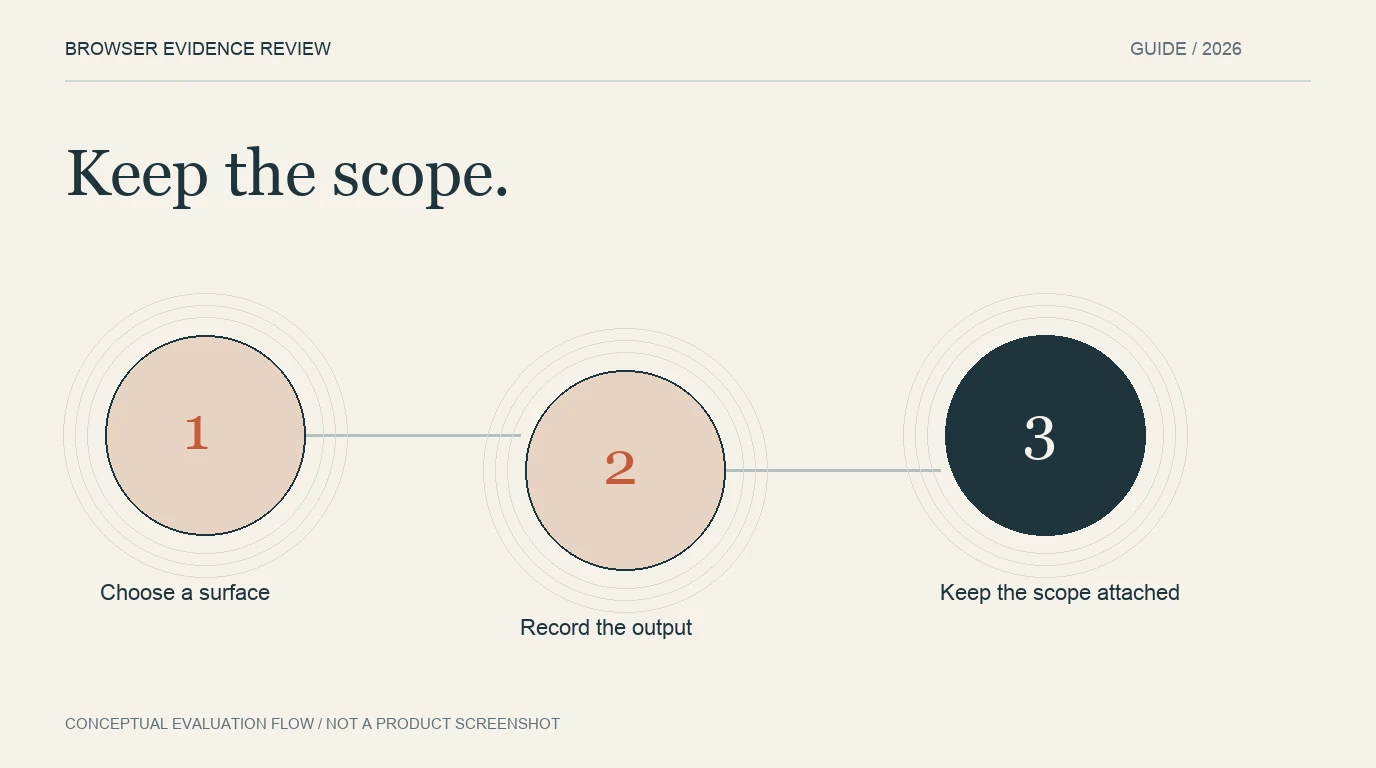
- 1Choose a surface
- 2Record the output
- 3Keep the scope attached
Start with the official project or provider
For CreepJS, use the deployment linked by the project repository. The repository identifies its official GitHub Pages deployment. A similar-looking domain or a search result with a familiar name should not substitute for the project’s own link.
The checker directory keeps the selected external destinations visible. Opening a resource sends the browser to that provider, whose page may collect browser information under its own practices. Our directory filters static cards; it does not embed these tools or collect their test results.
Match the resource to the evidence
| Resource | Main use in an evaluation | Boundary |
|---|---|---|
| CreepJS | Inspect fingerprint behavior, prototype lies and diagnostic scores | Research output is not a managed account-risk service |
| BrowserLeaks | Inspect individual JavaScript, rendering and connection surfaces | Raw values need interpretation |
| Pixelscan | Review a browser’s displayed consistency and environment findings | A public page result is not a production integration contract |
CreepJS is useful when the question concerns how browser APIs behave together. The project includes fingerprint analysis; describing it as having no identifier or score would miss visible parts of the research tool. The relevant limitation is operational scope, not the absence of every numerical output.
BrowserLeaks is useful when the investigation concerns one surface. The JavaScript and WebRTC pages answer different questions, and an expected field may be unavailable in a particular browser. Pixelscan offers a more consolidated consistency view. Its changelog helps establish that diagnostics evolve; retain the date of an observed result.
Record fields rather than a pass screenshot alone
A screenshot without context can become misleading after a browser update. Save the resource URL, browser version, permitted configuration, collection time and the actual findings being discussed. Record unavailable fields explicitly.
For example, a reviewer investigating a managed browser might note a corporate policy affecting an API, then compare the diagnostic category with that known setting. The useful record explains the observation. It does not merely say that the browser passed or failed on a particular day.
Do not copy another person’s session or submit their network information to make the test more realistic. Use your own permitted evaluation environment and avoid placing account secrets in free-form fields or reports. A diagnostic page does not need your application’s private server key.
Compare changes with a controlled baseline
Begin with a known supported browser and retain its version. If a permitted setting changes, record that change and compare the relevant output. Keep the investigation focused: a connection change should be interpreted in the network context, while a browser extension can affect several APIs together.
Multiple altered fields may have a common cause. Counting each as an independent finding can exaggerate confidence. Include a legitimate configuration that produces similar observations before concluding that the result uniquely identifies deliberate manipulation. The false-positive guide provides a review framework.
Know when to move to a product evaluation
A public checker does not normally know your application’s authenticated account, entitlement history or decision outcome. To protect signup or login, evaluate the chosen product in the supported integration. Confirm that the server can read the trusted result and associate it with the intended action.
The ten-tool comparison distinguishes production services and diagnostics. ShieldLabs provides identification and account-risk context; Fingerprint exposes hosted recognition and entitled Smart Signals; inline bot-protection services have their own request workflow. A checker can help investigate what a browser exposes without replacing those operational responsibilities.
Use public observations to ask better questions during that evaluation. Which field indicates manipulation? Which result depends on network conditions? What happens when collection is incomplete? Can a reviewer explain the action taken for a legitimate user? Those questions travel between products more reliably than an unexplained headline score.
FAQ
Which checker is the most accurate?
The resources expose different surfaces and scores. A meaningful accuracy comparison needs a defined task, labels and controlled cases. A higher page score alone does not establish better account-abuse detection.
Can these tools identify a physical person?
Browser observations and fingerprint identifiers do not establish a physical person by themselves. Account authentication, device evidence and identity verification remain separate concepts.
Does a clean result mean an anti-detect profile is safe?
It means only that the visible checks produced that result in that environment at that time. Other evidence, product checks and application history can differ.
Continue reading
- Browser tampering false positives: protect privacy users
- Detect multi-accounting across anti-detect browser profiles
Compare all ten tools or read the complete deployment guide.